AIUpscaler.video
AIUpscaler.video
    Home
    Pricing
AIUpscaler.video
AIUpscaler.video

Upscale video to 4K online with AI. Upload your video, choose 4K, and download the finished MP4—no software installation needed.

Product
HomePricing
Legal
Privacy PolicyTerms of ServiceRefund Policy
🇺🇸 English🇪🇸 Español
© 2024 AIUpscaler.video, All rights reserved
Privacy PolicyTerms of Service

Upscale Video to 4K with AI

useruseruseruseruser
LIVE
5.0

from 0+ happy users

Active now
Verified

AI Video Upscaler

Drag a video here, or Click to select a file

Supports MP4, MOV, M4V, MKV, AVI, MPG, 3GP, WMV · up to 1GB

Recent Tasks

View All
Loading…

Key Features of Our 4K AI Video Upscaler

Supported Formats

Upload MP4, MOV, and other supported formats—up to 1 GB and 10 minutes per video.

Resolution Options

Choose 4K, 2K, 1080p, or 720p. Output dimensions depend on your source video and model.

Frame-Rate Options

Keep your original frame rate with Video2X, or adjust it up to 60fps with Topaz Enhance.

Preview & Download

Download your MP4 within 30 days of completion. Compare before and after while the original remains available in your session.

What Videos Can You Upscale to 4K?

Want to upscale video to 4K? Start with the footage you already have—home videos, animation, AI-generated clips, or recordings. The improvement depends on the detail, blur, and compression in your original video.

Illustrative comparison of a family Christmas recording, with a softer left side and a clearer right sideBeforeAfter

Upscale Old Video to 4K

Give old family recordings a higher-resolution version for larger screens. Results depend on the detail left in the original footage. Have physical VHS tapes? First digitize them into a supported video file, such as AVI, MPG, or MP4, then upload it and select 4K.


Upscale Old Video to 4K
Illustrative anime comparison with pixelated outlines on the left and clearer line art on the rightBeforeAfter

Upscale Anime to 4K

Create a higher-resolution version of your anime video for larger-screen viewing. AI upscaling can improve the appearance of soft outlines and compressed detail. Check fine lines and moving scenes in the result, since the improvement varies with the original video.

Upscale Anime to 4K
Illustrative comparison of flamingos in a green room, with a pixelated left side and a clearer right sideBeforeAfter

Upscale AI Video to 4K

Have an AI-generated video exported at 720p or 1080p? Upload the finished file and select 4K for a higher-resolution version. Upscaling can improve perceived detail, but it does not guarantee a fix for distorted faces or motion already present in the original clip.

Upscale AI Video to 4K
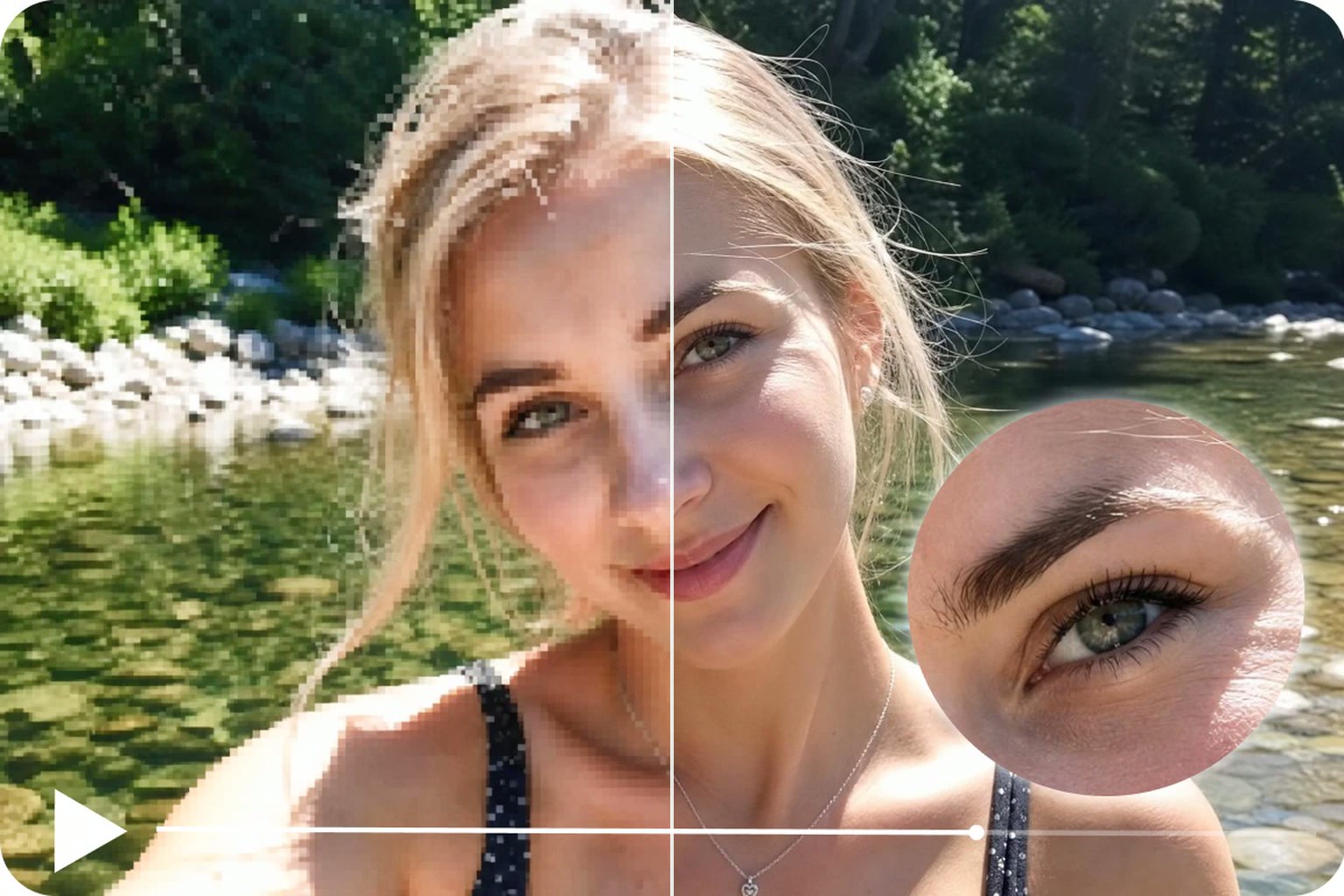
Illustrative outdoor portrait comparison with a close-up of the eye and clearer detail on the rightBeforeAfter

Upscale Video to 4K for YouTube and TikTok

Preparing gameplay, a tutorial, or a short video for YouTube or TikTok? Upload your original video file, select 4K, and download the processed MP4 for editing or publishing. Start with the highest-quality original available—heavy compression and missing detail can limit the improvement. Final playback quality depends on the platform’s processing and playback settings.

Upscale Video to 4K

How to Upscale Video to 4K in 3 Steps

Upload your video, review your 4K settings and credit cost, then download the finished MP4. AI processing runs in the cloud—no software installation needed.

  1. Upload Your Video

    Select or drag in your video file. Uploads support MP4, MOV, and other supported formats, up to 1 GB and 10 minutes per video. Keep the page open while uploading and preparation finish.

  2. Review Your 4K Settings and Credit Cost

    4K is selected by default. Choose Video2X to keep your original frame rate, or Topaz Enhance if you also want to adjust it. Review the credit cost shown on the Process button before you start.

  3. Download Your Upscaled Video

    Once uploading and preparation are complete and your task appears in My Creations, you can close the page while processing continues. Return to download the finished MP4. AIUpscaler.video does not add a watermark.

Why Choose AIUpscaler.video to Upscale Video to 4K?

Sharper Edges and Clearer Detail

Bring more definition to soft edges and fine textures with AI upscaling, improving clarity for a closer look or a larger screen.

Reduce Compression Artifacts

Reduce visible compression blocks and artifacts for a cleaner picture when viewing, editing, or sharing your video.

4K Output for Viewing and Publishing

Choose 4K output to create a higher-resolution version for larger screens, further editing, or uploading to your preferred video platform.

Know the Cost Before You Start

See the credit cost before processing. Buy a one-time credit pack with no subscription, and use your credits whenever you need them—they don’t expire.

No Local AI Software to Install

Upload your video and choose your settings in the browser. AI processing runs in the cloud, without installing or configuring local AI software.

Download Without an Added Watermark

Download your processed MP4 for editing or sharing, without an added watermark. Any watermark already in your source video remains.

Buy credits. Use them anytime.

One-time payment. No subscription. Choose the credit pack that fits your videos.

Credits never expire · No automatic renewal

Small Pack

$9.90one-time

What's included

  • 600 credits
  • Pay once. No subscription. Credits never expire.
  • Upscale to 4K · Also supports 2K, 1080p & 720p
  • Video2X & Topaz Enhance—no installation.
  • No watermark, ever
  • Commercial use
Best Value

Medium Pack

$19.90one-time

What's included

  • 1,600 credits
  • Pay once. No subscription. Credits never expire.
  • Upscale to 4K · Also supports 2K, 1080p & 720p
  • Video2X & Topaz Enhance—no installation.
  • No watermark, ever
  • Commercial use

Large Pack

$49.90one-time

What's included

  • 5,000 credits
  • Pay once. No subscription. Credits never expire.
  • Upscale to 4K · Also supports 2K, 1080p & 720p
  • Video2X & Topaz Enhance—no installation.
  • No watermark, ever
  • Commercial use

Questions? support@aiupscaler.video

FAQ

Frequently Asked Questions About AIUpscaler.video

Got questions about AIUpscaler.video? Find answers below or reach out to our support team.

01

Can I upscale 720p or 1080p videos to 4K?

You can upload 720p or 1080p videos and choose the 4K output option with either Video2X or Topaz Enhance. The final output dimensions depend on your source video and the selected model.

02

Will upscaling to 4K actually improve video quality?

AI upscaling can improve perceived sharpness and detail, rather than simply enlarging the frame. Results depend on the original footage: heavy blur, compression, and missing detail limit what can be recovered. Upscaled video is not guaranteed to match footage originally recorded in 4K.

03

Should I choose Video2X or Topaz Enhance?

Choose Video2X if you want to upscale to 4K while keeping your video’s original frame rate. It uses fewer credits under our standard pricing. Choose Topaz Enhance if you also want to increase the frame rate, with an option for 60fps to make motion look smoother. Both offer up to 4K—60fps is about smoother motion, not sharper detail. Compare the credit cost shown before starting.

04

How do I upscale video to 4K online? Do I need to install software?

No installation is needed. Sign in to AIUpscaler.video, upload your video, choose a model and the 4K output option, then review the credit cost before starting. AI processing runs in the cloud, and you can download the completed video as an MP4.

05

Can I upscale videos to 4K for free on AIUpscaler.video?

AIUpscaler.video is a paid service, with no free trial or sign-up bonus credits. Buy a one-time credit pack from $9.90; new pack credits never expire and no subscription is required. Your video’s credit cost is shown before you start.

06

Will my upscaled video have a watermark?

AIUpscaler.video does not add a watermark to your downloaded video. This applies to both subscriptions and one-time credit packs. Upscaling does not remove watermarks already present in your original video.

07

How long does it take to upscale video to 4K?

Processing time depends on your video's length, the selected model, output settings, and service demand. You can check your task's status in My Creations. There is no fixed completion time for every video.

08

What should I do if my video seems stuck processing?

Check the task's status in My Creations before submitting it again. The percentage shown is an estimate, not a live measure of processing; a paused percentage alone does not mean the task has failed. If it remains in processing and you are unsure whether to keep waiting, use Feedback or email support@aiupscaler.video with the Task ID. There is no in-app option to cancel a processing task, and deleting a finished task does not refund credits. Submitting the video again starts a new paid task. If the original task is confirmed as failed due to a service or provider error, its deducted credits are returned automatically.

09

What video formats, file sizes, and lengths are supported?

You can upload MP4, MOV, M4V, MKV, AVI, MPG, 3GP, and WMV videos, up to 1 GB and 10 minutes per file. Some formats require conversion before upscaling. Compatibility also depends on the codecs used in your video.

10

Will I get my credits back if upscaling fails?

If a task fails because of an error in our service or its processing provider, the credits deducted for that task are automatically returned to your account. This restores credits, not cash. If a confirmed failed task has not had its credits restored, contact support with the Task ID.

11

What format will I download, and is the audio preserved?

The processed video is delivered as an MP4 with the main audio track, which may be re-encoded. Conversion does not preserve additional audio or subtitle tracks.

12

Can I close the page and download my video later?

Yes—once uploading and preparation are complete and your task appears in My Creations, processing can continue after you close the page. Return to My Creations to check its status and download the finished MP4. Results are available for download for 30 days after completion, unless you delete them earlier.

13

How can I get help with processing, downloads, or billing?

Email support@aiupscaler.video with your account email and a brief description of the issue. For processing or download problems, include the Task ID and any error screenshot. For billing questions, include the transaction reference so we can locate the payment.

Have more questions?Contact our support team →

Ready to Upscale Video to 4K?

Upload your video, choose 4K, and review the credit cost before you start. Download the finished MP4 from My Creations. Credit packs start at $9.90—one-time payment, no subscription, and credits that never expire.

Upscale Video to 4KView Credit Packs